
2026-10-28 · by Sable, Founding team, Anon eSIM
Red phone signal: what it means and how to fix it
What a red phone signal means on iPhone and Android, the usual causes, step-by-step fixes at home and abroad, and the red icons that aren't signal problems.
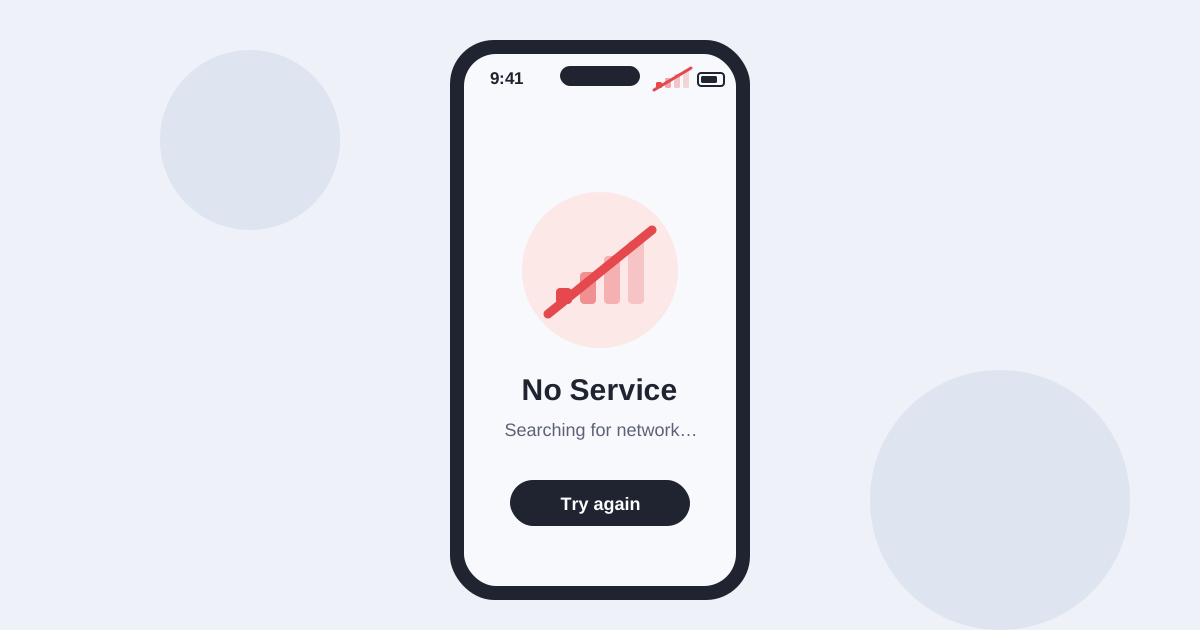
A red phone signal usually means your phone has lost its usable connection to the mobile network, or that something on the phone is blocking it. Depending on the model, you might see red or crossed-out bars, a small X, an exclamation mark, or the words "No Service" or "SOS" where your bars normally are. In most cases, a few quick checks fix it in under five minutes.
This guide explains what a red signal on your phone means, what usually causes it, and how to fix it on iPhone and Android, at home and abroad. It also covers the red icons people often mistake for a signal problem.
One thing to be upfront about: phone makers and carriers don't all show signal problems the same way. Colors and symbols vary by phone model, software version and carrier, so match the descriptions below to what you actually see on your screen.
What does a red phone signal mean?
It's a warning that your phone can't connect properly to a mobile network, so calls, texts or mobile data may not work.
The exact symbol depends on your phone. Here are the most common versions:
- Red, gray or crossed-out bars. The phone can't find a usable signal from your network.
- "No Service" or "Searching". The phone is looking for a network but hasn't connected.
- "SOS" or "SOS only". On recent iPhones and many Android phones, you can call emergency services through another network, but not make normal calls.
- A small X next to the bars. On some Android phones, this means mobile data is turned off or the SIM isn't working, even if you have bars.
- An exclamation mark next to the bars. On many Android phones, you're connected to a network but mobile data isn't getting through.
The common thread is simple. Either there's no signal where you are, or the phone, the SIM or the account is stopping it from using the signal that's there.
Is it really a signal problem?
Not always. Several red icons at the top of the screen have nothing to do with your network.
Before you start changing settings, check which part of the status bar is red:
- The time or a pill shape turns red (iPhone). Something is recording: a screen recording or an app using the microphone in the background. Tap it to see which app.
- The battery icon turns red. Your battery is low. It isn't a signal issue, though Low Power Mode or a battery saver can limit background data.
- A red dot on the Phone app. You have a missed call or voicemail.
- A small orange or green dot (iPhone). An app is using the microphone or camera. This is a privacy indicator, not a network warning.
If the red is next to your signal bars or your carrier name, read on.
What causes a red signal on your phone?
Most cases come down to one of four things: coverage, settings, the SIM or eSIM, or your account.
Working out which one applies saves time:
- Weak or no coverage. Basements, elevators, tunnels, thick-walled buildings, rural areas and mountains can all leave you without a usable signal. A tower outage or maintenance can do the same.
- Settings. Airplane Mode left on, mobile data switched off, or the wrong line chosen for data on a dual-SIM phone.
- SIM or eSIM problems. A loose, dirty or damaged SIM card, an eSIM profile that isn't turned on, or a SIM that has been deactivated.
- Account issues. An unpaid bill, a suspended line, or a plan that doesn't include the network or country you're in.
- Software glitches. A bug after an update, an outdated carrier settings file, or corrupted network settings.
- A locked phone. A carrier-locked phone may refuse a SIM or eSIM from another provider. It often shows "SIM not supported" or no service at all.
How do you fix it at home?
Work through these steps in order and test after each one.
- Toggle Airplane Mode. Turn it on, wait 10 to 15 seconds, then turn it off. This forces the phone to search for networks again.
- Restart the phone. A full restart clears many temporary network glitches.
- Check mobile data. Make sure mobile (cellular) data is on, and on a dual-SIM phone, that the right line is set for data.
- Check the SIM. For a physical SIM, power off, remove it, check for dirt or damage, and reinsert it firmly. For an eSIM, check that the line is turned on in your phone's SIM settings.
- Update the phone. Install any system update. On iPhone, a carrier settings update may also pop up under Settings > General > About.
- Reset network settings. On iPhone, go to Settings > General > Transfer or Reset iPhone > Reset > Reset Network Settings. On Samsung, go to Settings > General management > Reset > Reset network settings. This also removes saved Wi-Fi networks and Bluetooth pairings.
- Try another location. Move near a window, go outside, or try another floor. If the bars come back, the problem is coverage, not your phone.
- Contact your carrier. Ask whether there's an outage in your area and whether your line is active.
Menu names vary by phone model and software version, so look for the closest match on your device.
How do you fix a red phone signal abroad?
When you travel, the cause is usually a roaming setting or the wrong line being used for data.
Travel adds a few extra causes on top of the usual ones. Your home plan may not include roaming, or roaming may be turned off. If you use a travel eSIM, the phone may still be trying to use your home line for data.
Check these first:
- Data roaming. Turn on data roaming for the line you want to use abroad. If you use a travel eSIM, turn it on for that line only, and keep it off on your home line to avoid roaming charges.
- Mobile data line. On a dual-SIM phone, set the travel line as the line for mobile (cellular) data.
- Network selection. If automatic network selection keeps failing, turn it off and pick a partner network from the list manually, then switch back to automatic later.
- Coverage in that country. Rural areas, islands and mountain regions can have gaps on every network.
- Phone lock. A phone that's locked to your home carrier won't accept a travel eSIM until it's unlocked.
If you haven't set up a travel eSIM before, our step-by-step guide to using an eSIM for international travel covers the settings in detail, and the iPhone install guide shows where each switch is.
When should you suspect the phone itself?
If the signal stays red in places where other phones work, after all the steps above, the phone or the SIM may be faulty.
Try your SIM in another phone, or another working SIM in your phone. If the problem follows the SIM, ask your carrier for a replacement. If it stays with the phone, it may need repair.
Physical damage, water exposure or a recent drop can affect the antenna. Check your device's support pages or an authorized repair shop before you replace anything.
How can you avoid signal problems on your next trip?
Set up and test your connection before you leave home.
- Check compatibility. Make sure your phone supports eSIM and is unlocked. You can check models on our compatible devices page.
- Install early. Download any travel eSIM at home on Wi-Fi, so you aren't troubleshooting at arrivals.
- Save offline maps. Download maps for the places you'll visit in case you hit a dead zone.
- Know your settings. Learn where data roaming and the data line switch live on your phone before you need them.
- Keep Wi-Fi calling in mind. Where your carrier supports it, Wi-Fi calling can keep calls and texts working when the mobile signal is poor.
Frequently asked questions
Why is my signal red but I have Wi-Fi? Wi-Fi and mobile signal are separate. You can browse on Wi-Fi while the mobile network is unavailable. A red signal on your phone only affects calls, texts and data over the mobile network.
Does a red signal mean my SIM is blocked? Not necessarily. It's more often coverage or a setting. If the problem continues everywhere, ask your carrier whether the line is active.
What does SOS mean in place of the bars? Your phone can't reach your own network, but it can reach another one for emergency calls. Normal calls and data won't work until you're back in range of your network or a roaming partner.
Can a phone case cause a red signal? Rarely. Thick metal cases or magnetic mounts can weaken reception slightly, but they don't usually remove the signal entirely.
Can an anonymous eSIM fix a red signal abroad? An eSIM can help if the cause is your home plan, for example no roaming or an expensive pass. An anonymous eSIM such as Anon eSIM connects to partner networks without an ID check. It can't fix a dead zone, a locked phone or a faulty antenna.
The bottom line
A red phone signal almost always comes down to coverage, a setting, the SIM or eSIM, or your account. Start with Airplane Mode and a restart, then check mobile data, roaming and the SIM before calling your carrier.
If you're planning a trip and want data that works when you land, our guide to using an eSIM for international travel walks through the setup, and eSIM vs roaming compares the costs.
About the author: Sable
Sable is the pseudonymous founding writer at Anon eSIM. Ten years in mobile infrastructure and payments; now writes about travel connectivity, roaming economics, and practical privacy. Pseudonymous by choice - fitting for a company whose entire product is not knowing who you are.
More about Anon eSIM →Related reading
- How to use an eSIM for international travel, step by step →Going abroad from the U.S.? Learn how to check your phone, pick a plan, install a travel eSIM before you fly, and fix the most common problems on arrival.
- eSIM Italy guide: the benefits of a tourist eSIM for U.S. travelers →How a tourist eSIM works in Italy, what it costs, how to choose a plan, and the limitations U.S. travelers should know before they fly.
- USA eSIM for tourists: no ID, no SSN, no US address (2026) →A USA eSIM for tourists with no ID, no SSN and no US address: why US prepaid SIMs are hard for visitors, what data costs at $2.80/GB, and how to set it up.
- Cheapest eSIM for Europe in 2026: per-GB, not per-plan →The cheapest eSIM for Europe is priced on the data you use, not the bundle. A per-GB comparison of Europe eSIMs, with Anon eSIM at $1.60–1.80/GB and no expiry.